
NVS Upload — FAQ
NVS Upload — FAQ
Section titled “NVS Upload — FAQ”You purchased KYC in NVS Shop and received a link. Below is how to upload accounts to the bot.
Video guide: KYC for Bybit and MEXC without authorization, without sharing links, with re-verification — watch on YouTube
Quick Start: Manual (proxies + cookies)
Section titled “Quick Start: Manual (proxies + cookies)”Upload proxies and cookies separately.
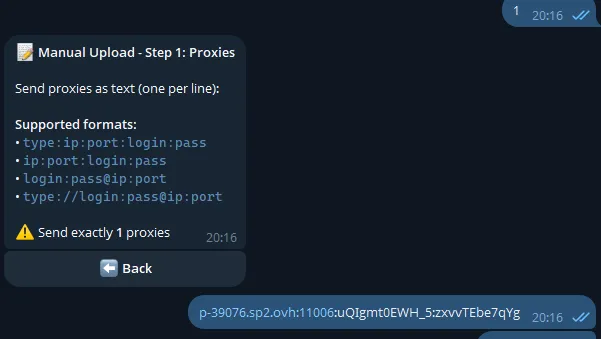
Step 1. Open the bot → Upload Accounts → Manual. Paste your proxy list into the chat (as text, one per line):
Step 2. Export cookies from your browser using the Cookie Editor extension → Export → JSON → save to a .json file.
Bybit only: you can also extract just the secure token — video tutorial on YouTube
Step 3. Send .json cookie files as documents 📎 → bot validates → press Confirm.
Done! Order created, sellers will start KYC verification.
Quick Start: AdsPower
Section titled “Quick Start: AdsPower”Using AdsPower? Export your profiles as TXT and send to the bot — this is the easiest way.
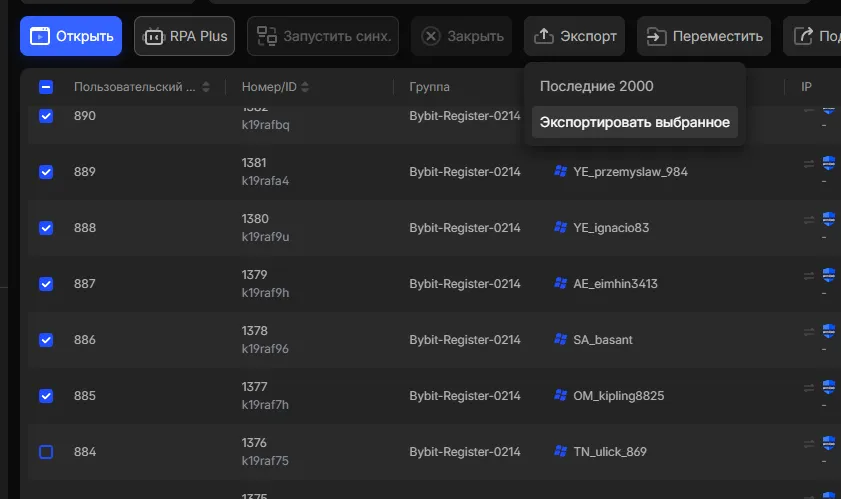
Step 1. Select the profiles you need, click Export and choose TXT format.
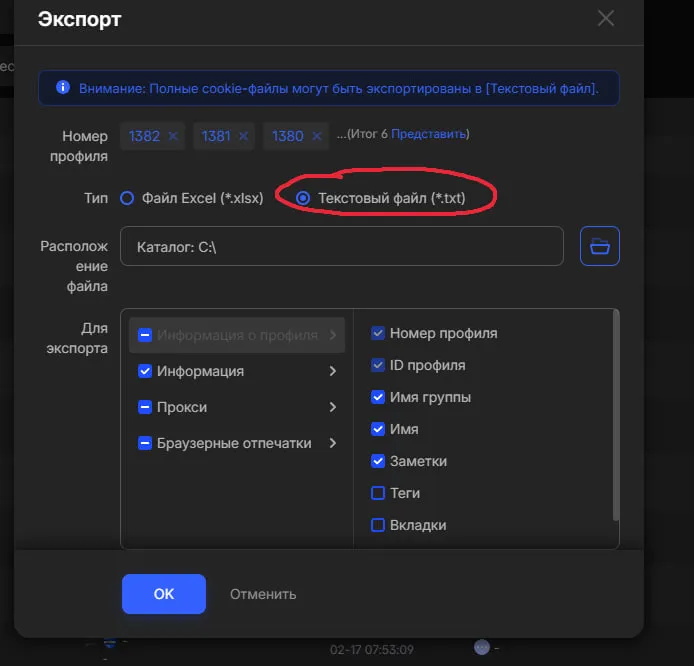
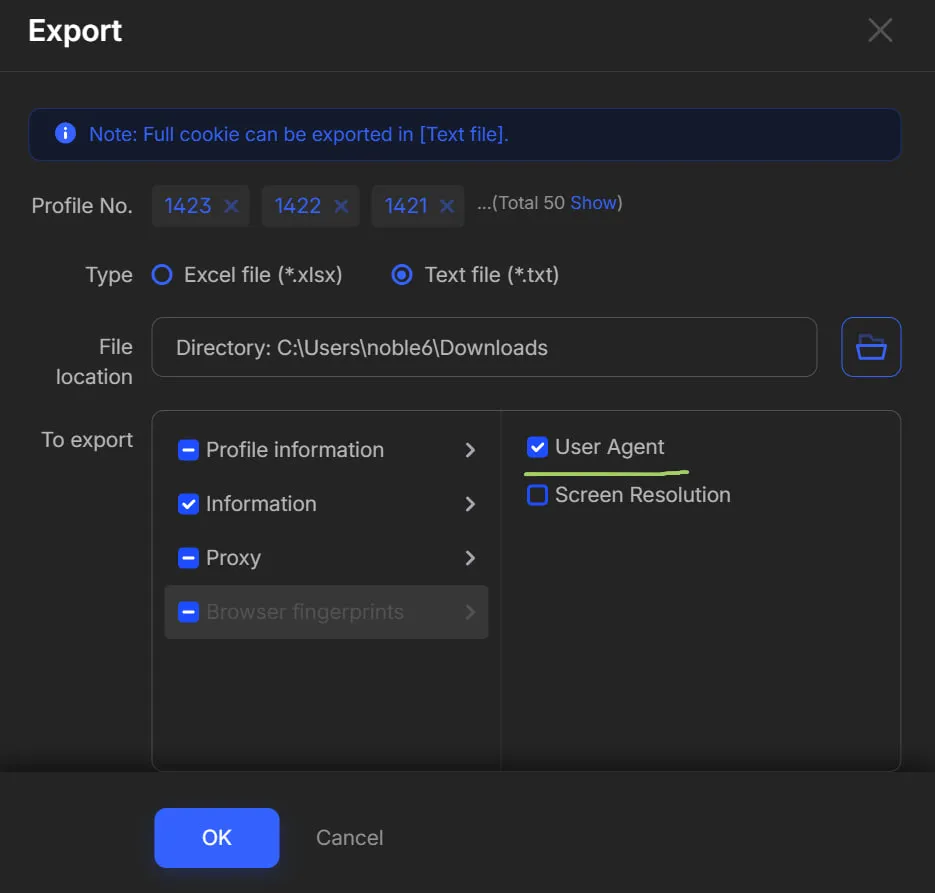
Step 2. In the export settings, make sure to enable User Agent.
Step 3. Open the bot @AutoPilotKYC_bot, press Upload Accounts → AdsPower TXT → send the file as a document 📎.
Done! The bot will validate accounts and offer to create an order.
How to Get Cookies via Cookie Editor
Section titled “How to Get Cookies via Cookie Editor”No Anti-Detect browser? Export cookies directly from your regular browser using the Cookie Editor extension.
Cookie Editor lets you transfer accounts between browsers without logging in again. Useful for:
- Sharing access — give access to an account without sharing the password
- Bypassing blocks — Gmail, Discord and other services often block logins from new devices. Cookies transfer the session without re-authentication
- Multiple devices — quickly switch between browsers
Step 1. Install Cookie Editor for Chrome
Step 2. Open the site (e.g. Bybit) in the browser where you’re logged in → click the Cookie Editor icon → Export → JSON. Cookies are copied to clipboard.
Step 3. Paste the copied cookies into a text file and save as .json or .txt. Send this file to the bot as a document 📎.
Important:
- Use the same IP address or proxy so the service doesn’t suspect foul play
- Cookies have an expiration — if the session expires, you’ll need to log in again
Which Method to Choose?
Section titled “Which Method to Choose?”| Method | When to Use | Difficulty |
|---|---|---|
| Manual | Proxies and cookies separately | Medium |
| AdsPower TXT | You use AdsPower | Easy |
What Happens After Upload?
Section titled “What Happens After Upload?”- The bot validates each account (proxy, cookies, exchange access)
- You see the result:
✅ Passed: 3 | ❌ Failed: 1 - Press Confirm → order is created
- Sellers receive the order and start KYC verification
- Check status via the My Orders button
Typical time: a few minutes to 1 day, depending on country and seller availability.
Security: Who Has Access to My Accounts?
Section titled “Security: Who Has Access to My Accounts?”Workers (KYC sellers) do not have access to your accounts. They only receive a unique one-time link to complete the verification. All they can do is pass KYC (verify identity). They cannot:
- Log into your account
- View your balance or history
- Make trades or withdraw funds
- Change account settings
Your cookies and data remain only within the bot’s system and are never shared with workers.
Detailed Guide
Section titled “Detailed Guide”Below is a detailed description of each step for reference.
Activating Your Link
Section titled “Activating Your Link”After paying in NVS Shop, you receive a link like:
https://t.me/AutoPilotKYC_bot?start=nvs_abc123def456What to do:
- Click the link — Telegram opens the bot
- Press Start (or the link opens automatically)
- You see a message: ”✅ Welcome to AutoPilot KYC!”
The bot shows you:
- 🌍 Country — the country you selected
- 💱 Exchange — Bybit or MEXC
- 📦 Accounts — how many accounts you purchased
⚠️ “Invalid or expired link” — Go back to NVS Shop and get a new one.
Main Menu Buttons
Section titled “Main Menu Buttons”| Button | What It Does |
|---|---|
| 📤 Upload Accounts | Start uploading (main action) |
| 📊 My Orders | Check order status |
| 🔙 Back | Return to previous screen |
AdsPower TXT — Details
Section titled “AdsPower TXT — Details”How to export:
- Open AdsPower
- Select the profiles you need
- Click Export → choose TXT format
- Make sure to enable User Agent
- Save the file
How to send:
- In the bot, press Upload Accounts → AdsPower TXT
- Send the
.txtfile as a document (via 📎)
⚠️ Send as a document, not as a photo or text message.
File format example:
acc_id=348id=k1894g0agroup=Share-1224name=4623 RWANDAcookie=[{"name":"token","value":"abc123"}]proxytype=httpproxy=123.45.67.89:8080:user:passcountrycode=rwua=Mozilla/5.0 ...******************acc_id=349...Manual — Details
Section titled “Manual — Details”Step 1: Proxies
Section titled “Step 1: Proxies”Paste proxy text directly into the chat (regular message). Number of lines = number of accounts.
Supported formats:
123.45.67.89:8080:mylogin:mypasswordmylogin:mypassword@123.45.67.89:8080http://mylogin:mypassword@123.45.67.89:8080socks5://mylogin:mypassword@123.45.67.89:8080Example for 3 accounts:
185.123.45.1:8080:user1:pass1185.123.45.2:8080:user2:pass2185.123.45.3:8080:user3:pass3After sending, the bot tests each proxy: working ✅, failed ❌.
Step 2: Cookie Files
Section titled “Step 2: Cookie Files”Send .json files as documents (via 📎). Number of files = number of working proxies.
⚠️ Do NOT paste cookie content as text — send files via 📎.
File format:
[ {"name": "token", "value": "abc123", "domain": ".bybit.com"}, {"name": "session", "value": "xyz789", "domain": ".bybit.com"}]You can send a single file with all cookies as a nested array:
[ [{"name": "token", "value": "abc123"}], [{"name": "token", "value": "def456"}]]Order Confirmation
Section titled “Order Confirmation”After validation, you see a summary:
📋 Validation Complete
✅ Passed: 3❌ Failed: 1
🌍 Country: KE💱 Exchange: BYBIT
❓ Create order with 3 account(s)?- ✅ Confirm — create the order
- ❌ Cancel — go back without creating
Common Errors and How to Fix Them
Section titled “Common Errors and How to Fix Them”❌ “This file is not valid JSON”
Section titled “❌ “This file is not valid JSON””| Problem | What You Did | Fix |
|---|---|---|
| Wrong file | Sent a screenshot, PDF, or text file | Save cookies to a .json or .txt file and send it |
| Pasted text | Pasted cookie text or JWT token | Paste cookies into a .json / .txt file, send as document via 📎 |
| Empty file | File has no content | Re-export cookies using Cookie Editor or your Anti-Detect browser |
| BOM encoding | Invisible characters at start | Re-save as UTF-8 without BOM |
If you copied cookies to clipboard (e.g. via Cookie Editor) — paste them into a text file, save as
.jsonor.txt, and send to the bot as a document 📎.
❌ “Could not read your proxies”
Section titled “❌ “Could not read your proxies””- Each line:
IP:PORT:USERNAME:PASSWORD - Don’t add extra text
- Just paste the proxy lines
❌ “All proxies failed the check”
Section titled “❌ “All proxies failed the check””- Proxies expired — ask your provider for new ones
- Wrong credentials — double-check login/password
- Server is down — try again later
❌ “All accounts failed validation”
Section titled “❌ “All accounts failed validation””The bot shows specific reasons:
No KYC provider— account not set up for KYCSession expired— cookies are oldProxy blocked— exchange blocks this IPCountry mismatch— proxy country doesn’t match order
Fix: fresh cookies + working proxies from your provider.
❌ “Wrong number of proxies”
Section titled “❌ “Wrong number of proxies””Number of lines must match the number of purchased accounts.
❌ “Too many cookie files”
Section titled “❌ “Too many cookie files””Each proxy needs exactly one cookie file.
❌ “Invalid or expired link”
Section titled “❌ “Invalid or expired link””Go back to NVS Shop and request a new link.
Frequently Asked Questions
Section titled “Frequently Asked Questions”What files do I need?
Section titled “What files do I need?”| Method | What You Need |
|---|---|
| AdsPower TXT | One .txt file from AdsPower |
| Manual | Proxy text + .json cookie files |
Where do I get proxies?
Section titled “Where do I get proxies?”From your proxy provider. They give you text like IP:PORT:USER:PASS.
Where do I get cookie files?
Section titled “Where do I get cookie files?”Export them using the Cookie Editor extension (Chrome, Firefox, Edge, Safari), or click Export in your Anti-Detect browser.
Can I send cookies as text?
Section titled “Can I send cookies as text?”No. Paste cookies into a .json or .txt file and send as a document via 📎.
What if some accounts fail?
Section titled “What if some accounts fail?”You can still create an order with the ones that passed. Failed accounts are excluded.
Can I upload more accounts later?
Section titled “Can I upload more accounts later?”Yes! Press Upload Accounts again.
What does “No KYC provider” mean?
Section titled “What does “No KYC provider” mean?”Account isn’t set up for KYC, or cookies are from a different account. Contact your provider.
How long until KYC is done?
Section titled “How long until KYC is done?”A few minutes to 1 day, depending on country and seller availability.
Something went wrong — who do I contact?
Section titled “Something went wrong — who do I contact?”Contact support through NVS Shop or the bot admin. Include screenshots of errors.
Summary: Activate link → Upload Accounts → Choose method → Send files → Confirm → Done!